 CHAINZERO
Jump to a section5 short sections
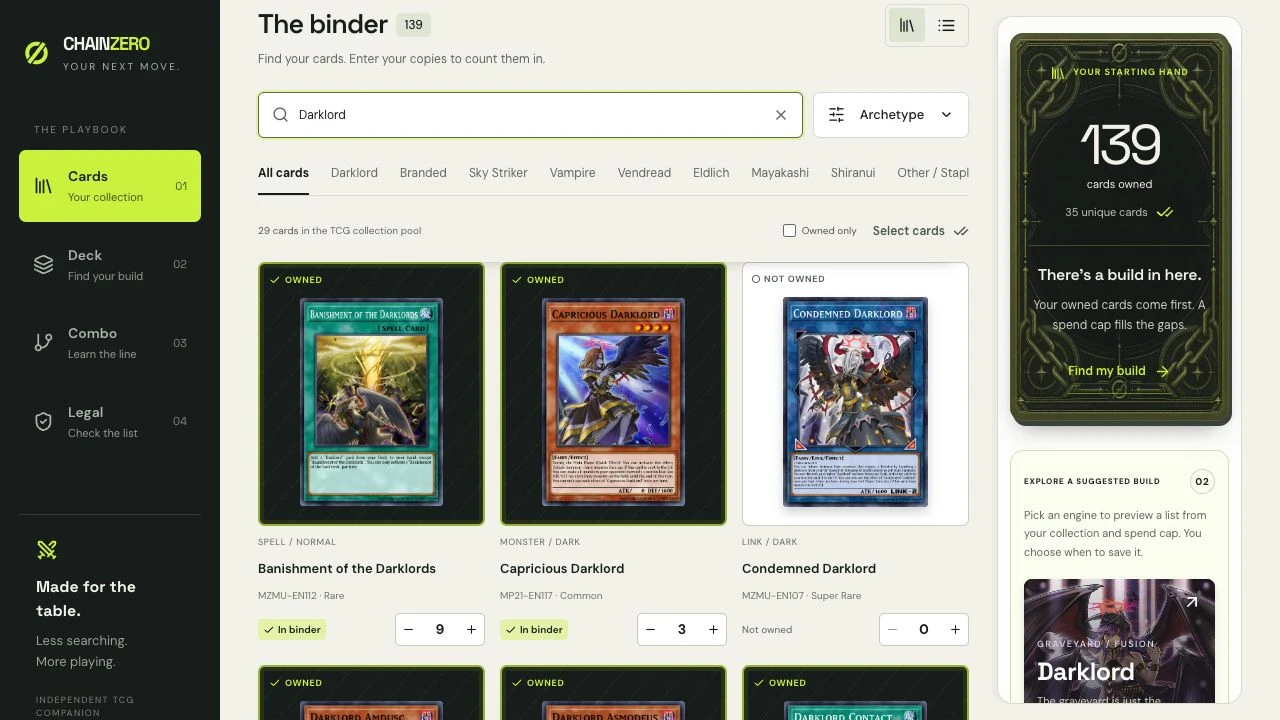
01Cards: record the copies you own
- Open Cards and choose TCG or OCG at the top. Your physical collection is shared; your saved deck lineups are separate for each format.
- Use the search box to find a card by name, set, or archetype.
- Change the quantity beside it to the number you actually own. Use Select cards when you want to update several at once.
These numbers describe your binder. They do not automatically place those cards into a deck.
02Build lab: preview a draft from your collection
- Open Deck, then choose Build lab.
- Select Build from what I have. Pick an engine or leave Find my best fit selected.
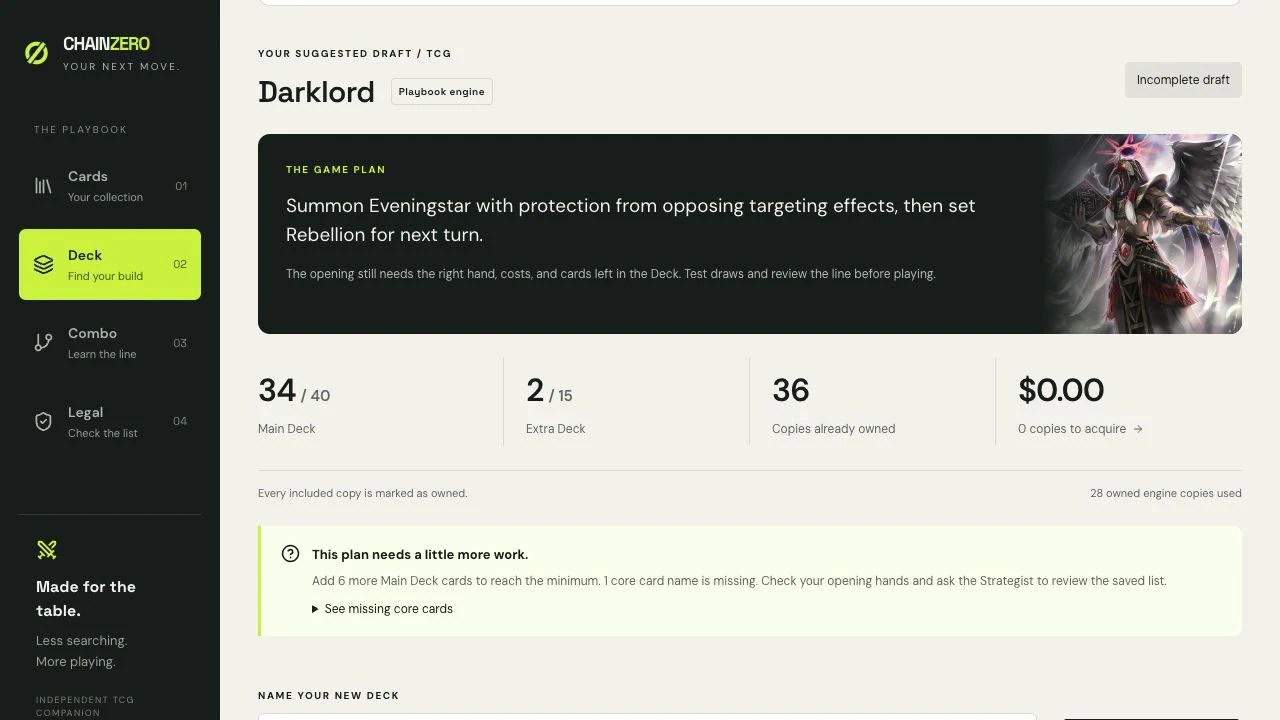
- Select Build from my collection, then review the Main Deck, Extra Deck, and any missing core pieces.
- Name the draft and choose Save as new deck (or Save as new draft for an incomplete list) when you want to keep it.
A small collection can produce an incomplete draft. The builder uses supported card pools; it does not build every archetype or prove that a deck is competitive.
03Your decks: add or change individual cards
- Choose Your decks and select the deck you want to edit. Or choose Create deck to start a blank list.
- Select Open card editor beneath that deck.
- In Make room for your next play, start typing a card name and choose a matching result.
- Set Copies to add, check the preview’s in deck and You own counts, then select Add card or the multiple-copy button.
The preview tells you whether the card goes into Main or Extra and how many copies you will still need. A card can be in your deck plan without being in your collection.
To update ownership later, use the binder controls or Choose cards in the deck’s collection quick-add panel. That changes ownership; removing a card from a deck only changes that deck plan.
04Try your opening and learn a line
Once your Main Deck has 40–60 cards, find Opening Odds below your saved list. Choose which cards you want to count as starters, then try a test hand. The number measures starter access, not your complete brick rate.
Open Combo to practice one of the taught lines. Check the named pieces and starting requirements, then move through the playboard step by step. Card ownership and inclusion in your selected deck are shown separately.
The general opening-hand guide explains how to think about starter chances without needing to know the app.
05Know what needs an account
You can browse cards and edit local collections and decks without signing in. Tester access opens the account panel when you want to request the online features. Tester approval is manual; signing in does not automatically approve the account.
Strategist and Combo Lab use online analyses for supported cards and actions. They require approved access and have shared usage limits. They can report uncertainty and do not replace official rulings.
For an approved account, Sync my account workspace is a separate, optional choice. Guest and account workspaces are separate. Read the import confirmation before copying guest decks into your account, and check the displayed sync status instead of assuming a cloud save succeeded.
If account emails or online services are unavailable, keep using the local tools. The current account panel explains what is ready. Do not clear browser site data when it holds your only copy of a collection.
About these steps
Labels and steps checked against the current CHAINZERO interface. Screenshots use an example workspace; your cards, counts, and available account features may differ.
This is app help, not a game-rules guide. Online features need a connection and the access shown in your account panel.
Interface checked September 29, 2026. Corrections: guides@chainzero.co.